For many travelers, monitoring data usage is crucial to avoid unexpected overages or slow speeds while abroad. Knowing how much data you have left can help you plan your online activities better, whether it’s checking emails or streaming videos. Thankfully, JetSIMGo makes it simple to track your data usage with their app and mobile settings. Here’s a quick guide on how to keep an eye on your data balance.
Checking Your Data Balance in the JetSIMGo App
- Open the JetSIMGo app: Launch the app on your device.
- Navigate to My eSIM: Select this option to view your details.
- View Data Usage: Here, you’ll find information about your usage days, activation dates, and expiration dates.
How to Check Data Usage on iPhone
If you’re using an iPhone, you can easily check your data usage by following these steps:
- Open the JetSIMGo app: Go to My eSIM.
- View Details: This section displays your usage days, activation date, and expiration date.
How to Check Data Usage on Android
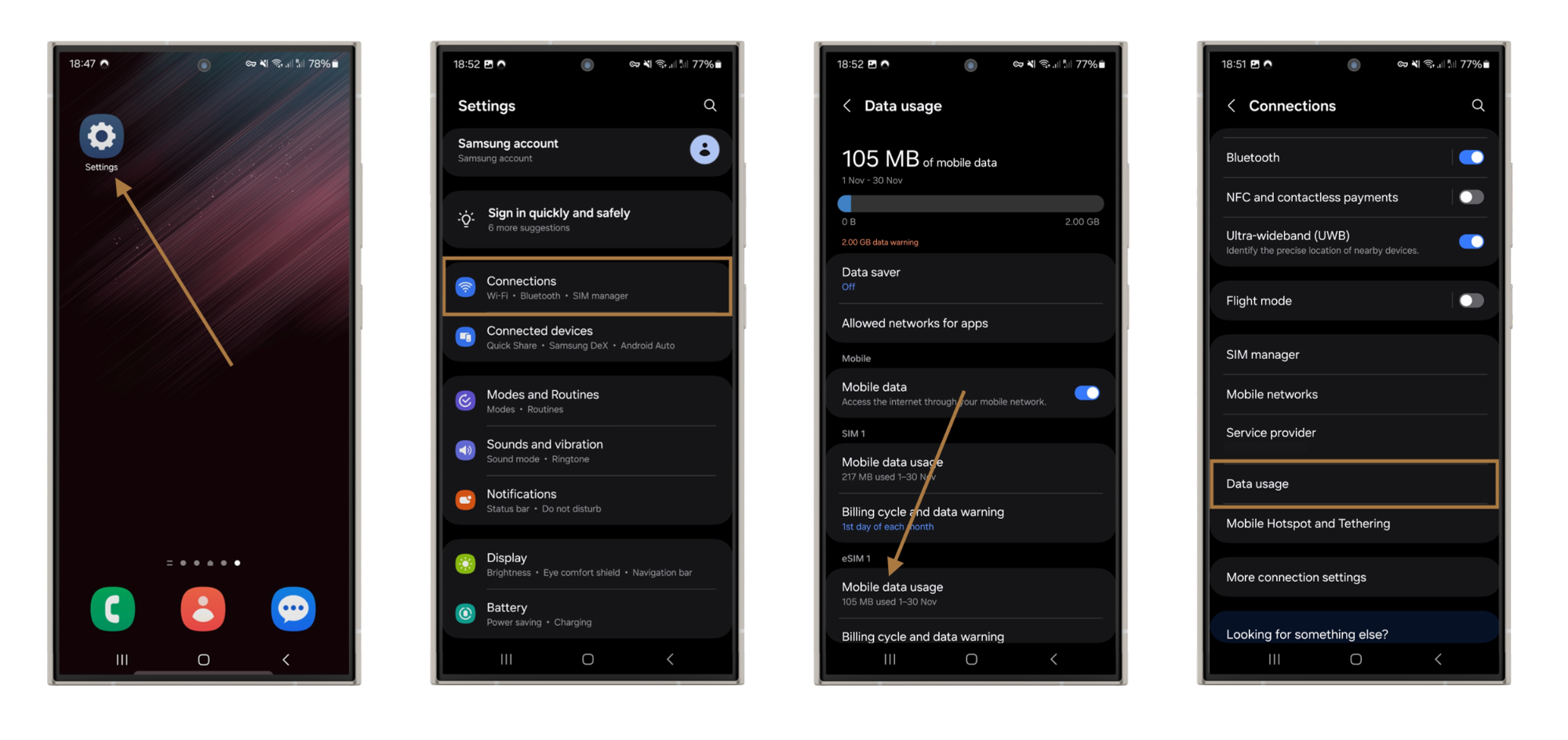
For Android users, here’s how to access your data usage:
-
- Go to Settings: Open your device’s settings.
- Select Connections: Tap on Data Usage.
- Check Data Consumption: You’ll see your total data consumption for the current period.
How to Know How Much Data I Have Left
If you’re using a limited data eSIM, the app makes it easy to check daily usage. For unlimited data plans, you won’t see daily details since there are no limits. This gives you the freedom to enjoy seamless connectivity without worrying about hitting a cap.
Smart Strategies to Save Your Data
Monitoring your data usage is not just about tracking it; it’s also about managing it efficiently. Here are some tips to help you conserve mobile data:
- Set Alerts: Use alerts for data usage and establish limits to prevent slow speeds once you reach your limit.
- Limit Background Data: Turn off background data for apps that don’t need constant updates, which can significantly reduce your overall data consumption.
- Be Mindful of Streaming: Streaming services can quickly deplete your data. Consider downloading content while connected to Wi-Fi instead of streaming on the go.
How to Know How Much Hotspot Data You Have Left
If you’re using your device as a hotspot, here’s how to check your hotspot data on both iPhone and Android:
- On iPhone: Go to Settings > Cellular or Mobile Data > Scroll down to Personal Hotspot. You can see how much data you’ve used for hotspot sharing.
- On Android: Navigate to Settings > Connections > Mobile Hotspot and Tethering > Select Mobile Hotspot. Here, you can view how much hotspot data you’ve shared.
Staying connected while traveling has never been easier. You can now buy eSIM online and enjoy instant activation. An international eSIM card for travel is ideal for those who want flexibility and convenience. Many consider it the best eSIM for international travel option. Choose wisely and buy international eSIM plans that meet your data requirements.